One workflow = one type of work.
Now that you're up and running in HeroHQ, let's talk about how to get the most out of it—starting with Workflows. Whether you're a list-maker, a process-person, or just someone trying to keep the chaos in check, workflows are about to become your favorite feature.
Let's Talk About Workflows
Think of workflows like digital dividers in a big binder. They help you keep requests separated by type—so you don't have HVAC PMs lumped together with gym setup requests or weekend event reservations tangled up with urgent repairs. Everything stays where it belongs, and you can actually find what you're looking for later.
Workflows let you separate different types of requests—like maintenance, preventive maintenance (PM), or events—so your data doesn't get all mixed together.
Tired of PMs Mixing with Everything Else?
We hear it all the time:
"How do I run a report for just my corrective work orders?"
"Can I split event requests from maintenance ones?"
The answer is: yes, absolutely. The key is to create a separate workflow for each type of work. (Might sound like more work, but it's VERY simple)
One Workflow, One Type of Work
Once you create a separate workflow—say, for PM schedules—you can move those requests over. They'll still go to your techs like normal, they'll still be worked like any other request, but now the data lives in its own lane.
Bonus: Cleaner Charts
When your requests are separated by workflow, your dashboard charts become way more useful. You can filter by:
- All workflows – see the big picture across your team
- Maintenance workflow – spot trends in corrective work
- PM workflow – track how well you're staying ahead of issues
- Event workflow – review how much time your team spends supporting outside requests
It's like turning on the high beams—you'll see what's working and what needs attention.
How to Set It Up
It only takes a few steps:
Step 1: Create a new workflow. (We've got a step-by-step guide to walk you through it.)
Step 2: Customize the settings to match your process. You can rename workflows, define request types, assign approval steps—make it match your process.
Step 3: Add your technicians to the new workflow. Technicians can belong to multiple workflows, so don't stress. They won't lose access to anything.
Step 4: Start tracking and reporting with clarity. As soon as new requests start flowing in, you'll notice the difference in your reporting.
Need a Hand?
Whether you want someone to walk through it with you or you're just looking for a cheat sheet, we're here for it. Drop us a note (support@operationshero.com) or give us a call—our team loves helping teams like yours get more out of the tools you already have.
Articles You May Like

AI + Human Judgment: The Partnership Facilities Teams Need
The real question isn't "Will AI take my job?" It's "How will AI help me do my job better?" Discover how AI enhances facilities teams rather than replacing them.
5 Hidden Ways Your Facilities Impact Student Outcomes
Most school leaders know that facilities matter, but few realize just how profoundly building conditions affect what happens in the classroom. Here are five surprising ways your facilities are shaping student success.
The ToolBox – August Edition
ClassLink Single Sign-On is now available! Plus updates to EventsHQ, HeroHQ, InventoryHQ, and introducing our new InspectionHQ module.
The ToolBox – June Edition
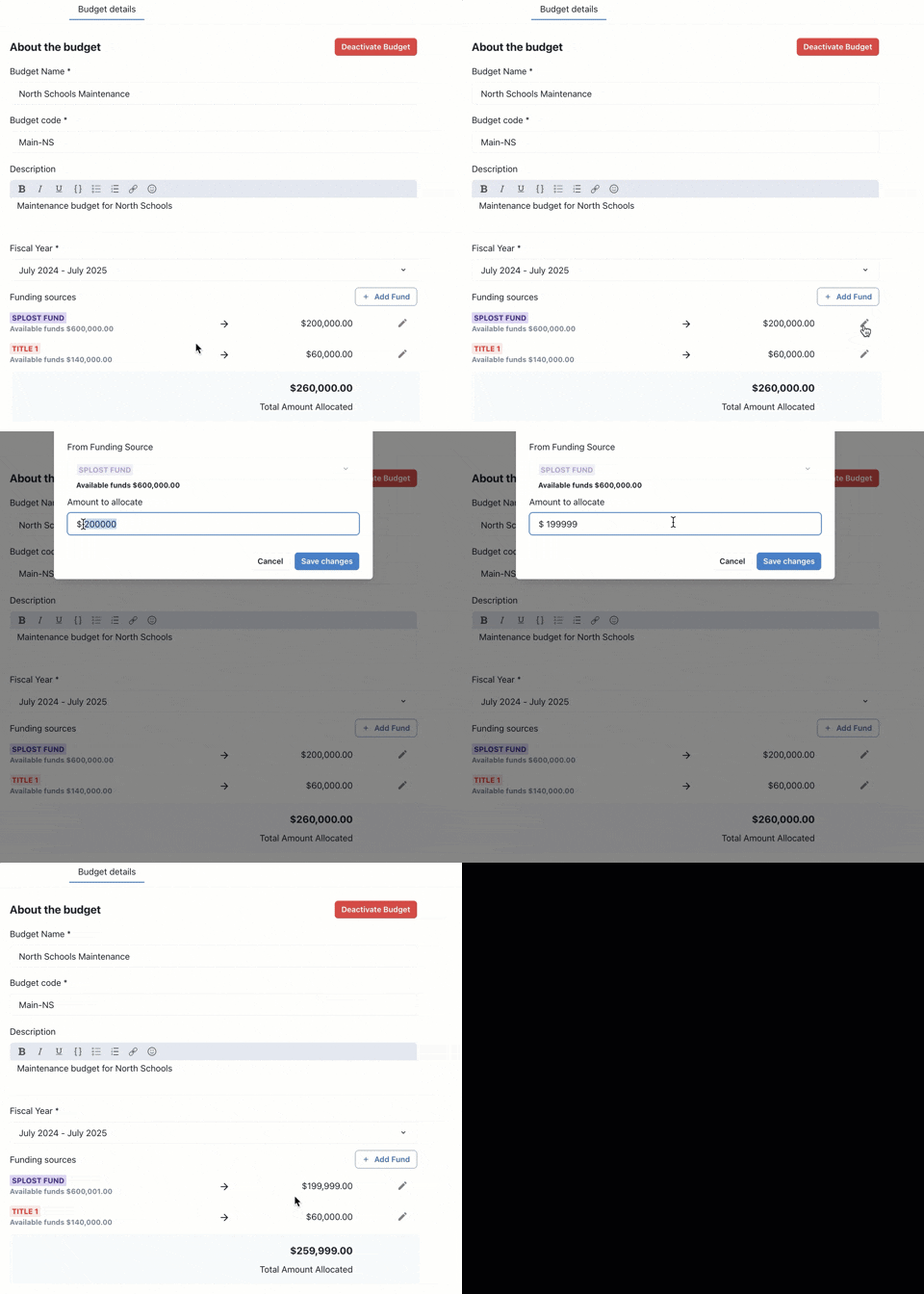
Our focus for May centered around a few key areas; Ease of use, workflow flexibility, and laying the groundwork for even bigger things ahead.
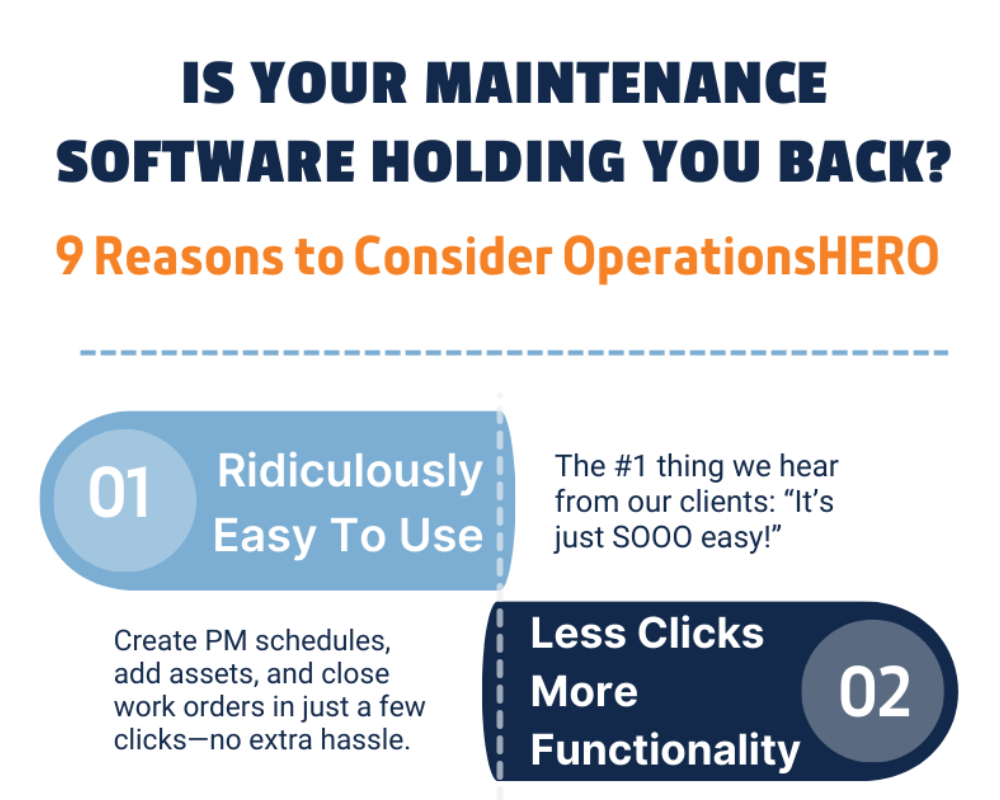
Not LOVING Your Current System? Here's 9 Reasons to Consider OperationsHERO
Technology has come so far in the last 20 years—but many facilities teams are still stuck using outdated, clunky systems that create more headaches than solutions.
Why Roof and HVAC Preventive Maintenance Pays Off
When you think about maintenance priorities, it's easy to focus on what's urgent. But roof and HVAC systems are two of the most expensive parts of your building.

From 'Oh My' to AI: How Schools Are Transforming School Facilities Management
Modern technology is making it easier than ever for schools to stay ahead of shrinking budgets, aging buildings, and skilled labor shortages.

Preventive Maintenance Meets AI: Smarter Task Books, Better Results
According to the U.S. Department of Housing and Urban Development, for every $1 spent on preventive maintenance, you can save up to $4 in future repair and replacement costs.

Who Uses a CMMS? Understanding the Different User Types and Their Needs
Different user groups have unique expectations, and designing your CMMS experience around those needs can dramatically improve user adoption and satisfaction.

How St. Joseph School District Transformed Facility Management—Without the Headaches
St. Joseph School District's previous CMMS was outdated, clunky, and difficult to use. Here's how they transformed facility management with OperationsHERO.